Monitoring & Audit
The Truvant agent runs in the background, enforcing policies and logging every command your AI agents execute.
Agent Monitoring
The Truvant enforcement agent is a lightweight background process that intercepts every command and MCP tool call your AI agents attempt to execute. It evaluates each action against your assigned policy role and either allows it, blocks it, or logs it (depending on whether the role is in Monitor or Enforce mode).
Install the agent
The agent is installed using a single command. Installation sets up the enforcement shim, registers the host with your organization, and starts the agent process.
# Install the agent and register this host with your organization
mcpctl install
The installer will prompt you to authenticate if you are not already logged in. It registers the host under your organization slug and applies the default policy role immediately.
Manage the agent
Use the following commands to control the agent lifecycle on any host.
# Check agent health and current policy mode
mcpctl agent status

# Start the agent if it is not running
mcpctl agent start

# Stop the agent (policy enforcement suspended until restarted)
mcpctl agent stop

# Restart the agent (applies after config or policy changes)
mcpctl agent restart

# Remove the agent and deregister this host from the organization
mcpctl agent uninstall
What the agent monitors
The agent observes the following categories of activity on each host:
- MCP configuration changes — New entries added to
claude_desktop_config.jsonor Claude Code config files are detected immediately and trigger a re-scan of the affected artifact. - New MCP servers — Newly installed packages or cloned repositories that match MCP server patterns are cataloged and queued for analysis.
- Dependency changes — Package lock file mutations (e.g.,
package-lock.json,yarn.lock) are detected and the dependency graph is re-evaluated for new CVEs. - Permission escalations — Attempts by AI agents to execute commands outside their declared scope, or to access resources beyond what the active policy permits.
- Policy integrity — Tampering with local policy files or the enforcement shim is detected and reported as a critical alert.
Monitor vs Enforce mode
Every policy role operates in one of two modes. You can switch modes at any time from the Policy Management page or from the host detail view.
| Mode | Behavior |
|---|---|
| Monitor | All commands are allowed to execute. Policy violations are logged and surfaced in the audit log and dashboard, but nothing is blocked. Use this mode when building or refining a policy role. |
| Enforce | Commands that violate the policy are actively blocked before execution. The agent returns an error to the AI agent's process and records the blocked event in the audit log. Use this mode once you are confident the policy is correct. |
Audit Log
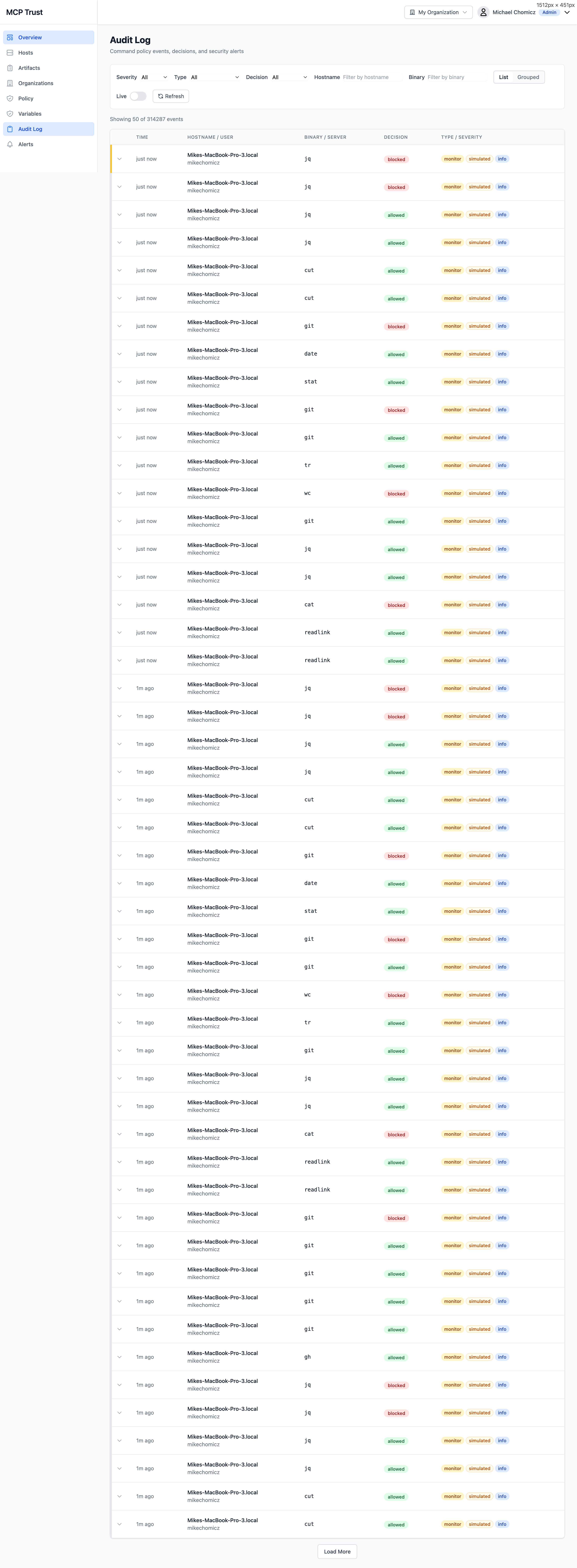
The Audit Log records every action evaluated by the enforcement agent across your entire fleet. Each entry captures the full context of a single agent action — what was attempted, what decision was made, and which rule was responsible.
| Column | Description |
|---|---|
| Timestamp | UTC timestamp at which the command was evaluated by the enforcement shim on the originating host. |
| Hostname | The machine where the action was attempted. Click to open the host detail view. |
| Binary | The executable invoked by the agent (e.g., git, kubectl, terraform). |
| Command | The full command and argument vector as evaluated. Sensitive argument values (tokens, passwords) are redacted. |
| Decision | Allowed — the command was permitted. Blocked — the command was denied. Would Block — the command would have been blocked under Enforce mode, logged in Monitor mode. |
| Rule | The specific policy rule that matched this command and produced the decision. Links to the rule in the role detail view. |
| Agent | The AI agent process that initiated the command (e.g., Claude Desktop, Claude Code, a custom MCP client). |
| Severity | The severity of the event: Info, Warning, Critical. Blocked commands and policy violations are elevated to Warning or Critical depending on the rule's declared risk level. |
Filter the audit log using any combination of the following:
- Severity — Info, Warning, Critical.
- Event type — Command execution, MCP tool call, config change, policy integrity event.
- Decision — Allowed, Blocked, Would Block.
- Hostname — Narrow to a specific machine.
- Binary — Filter to events involving a specific executable.
- Date range — Restrict to a specific time window. Retention is 90 days for Team, 1 year for Enterprise.
Alerts
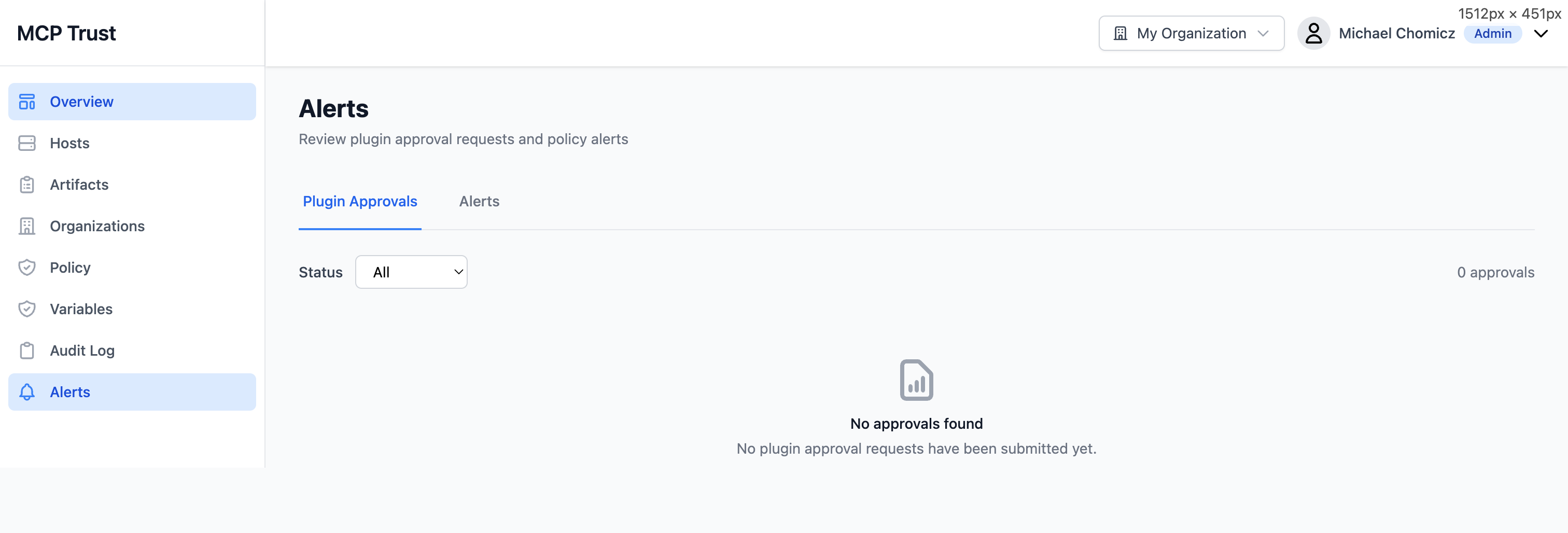
Alerts surface events that require human review — either because an agent attempted something outside policy, or because a new plugin or MCP server has been detected and is awaiting approval.
Plugin Approvals
When the agent detects a new MCP server or Claude Code plugin that has not been previously analyzed or approved, it raises a Plugin Approval alert. The plugin is held in a Pending state: it can be used but is flagged in the audit log, and policy enforcement is applied at your configured risk threshold.
Each approval request shows:
- The plugin or package name, version, and type.
- The host where it was detected.
- A summary of any scan findings already available.
- Actions: Approve (mark as reviewed and clear the alert), Block (add the artifact to your blocklist and prevent it from running), or Dismiss (acknowledge without a decision).
Alerts
Policy-triggered alerts are raised when the enforcement agent observes a pattern that matches a configured alert rule, regardless of whether the command was blocked. Common alert triggers include:
- A command was blocked because it violated the active policy.
- An agent attempted a command outside its declared tool set.
- A new high-risk artifact was installed on a host.
- A CVE with a CVSS score above your configured threshold was identified in an active dependency.
- The enforcement shim on a host reported a policy integrity violation.
- A remote MCP endpoint's trust score dropped below your policy threshold.
Each alert can be acknowledged, escalated, or resolved from the Alerts page. Resolved alerts are retained in the log for audit purposes.
SIEM Integration
The enforcement agent writes structured signal files to a configurable local directory for consumption by SIEM agents such as Microsoft Defender for Endpoint (MDE), CrowdStrike, or any log forwarder that watches a file path.
- Signal files for MDE — Events are written in a format compatible with the Microsoft Defender for Endpoint custom detections pipeline. MDE agents watching the signal directory pick these up automatically and forward them to your Sentinel workspace.
- JSON format — Each event is a newline-delimited JSON object containing all audit log fields. The schema is stable and versioned; breaking changes are announced in the release notes.
- Configurable directory — The signal output path is set in
~/.config/mcpctl/agent.yaml. Default is/var/log/mcpctl/signals/on Linux and~/Library/Logs/mcpctl/signals/on macOS. - Automatic rotation — Signal files are rotated daily and compressed. The agent retains the last 7 days of signal files locally; older files are removed automatically to avoid unbounded disk growth.
For full SIEM configuration details, including the JSON schema, Sentinel integration steps, and supported forwarder configurations, see Integration › SIEM.